> For the complete documentation index, see [llms.txt](https://docs.popl.co/introduction/llms.txt). Markdown versions of documentation pages are available by appending `.md` to page URLs; this page is available as [Markdown](https://docs.popl.co/introduction/integrations/salesforce-integration/salesforce-field-mapping.md).
# Salesforce Field Mapping
You can set up field mappings to ensure your Popl Lead data ends up where you need it in your CRM. You can setup field mappings for Leads, Contacts, Accounts, and Campaign Member.
#### Customize your Field Mappings
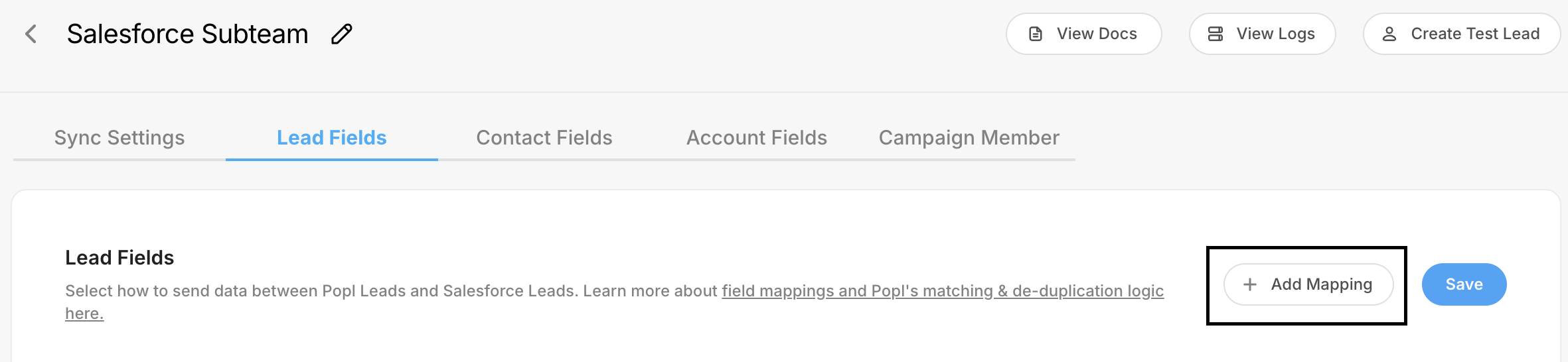
Contacts, Leads, Accounts, and Campaign Members can sync any Popl default field, enriched data, and lead qualifier. Default mappings can be modified or replaced. For the object you wish to set up mappings for, select the corresponding tab and click **Add Mapping** in the top-right corner. From here, select the Salesforce field, then choose the Popl field you would like to map from.
***
#### Leads - **Field Mapping**
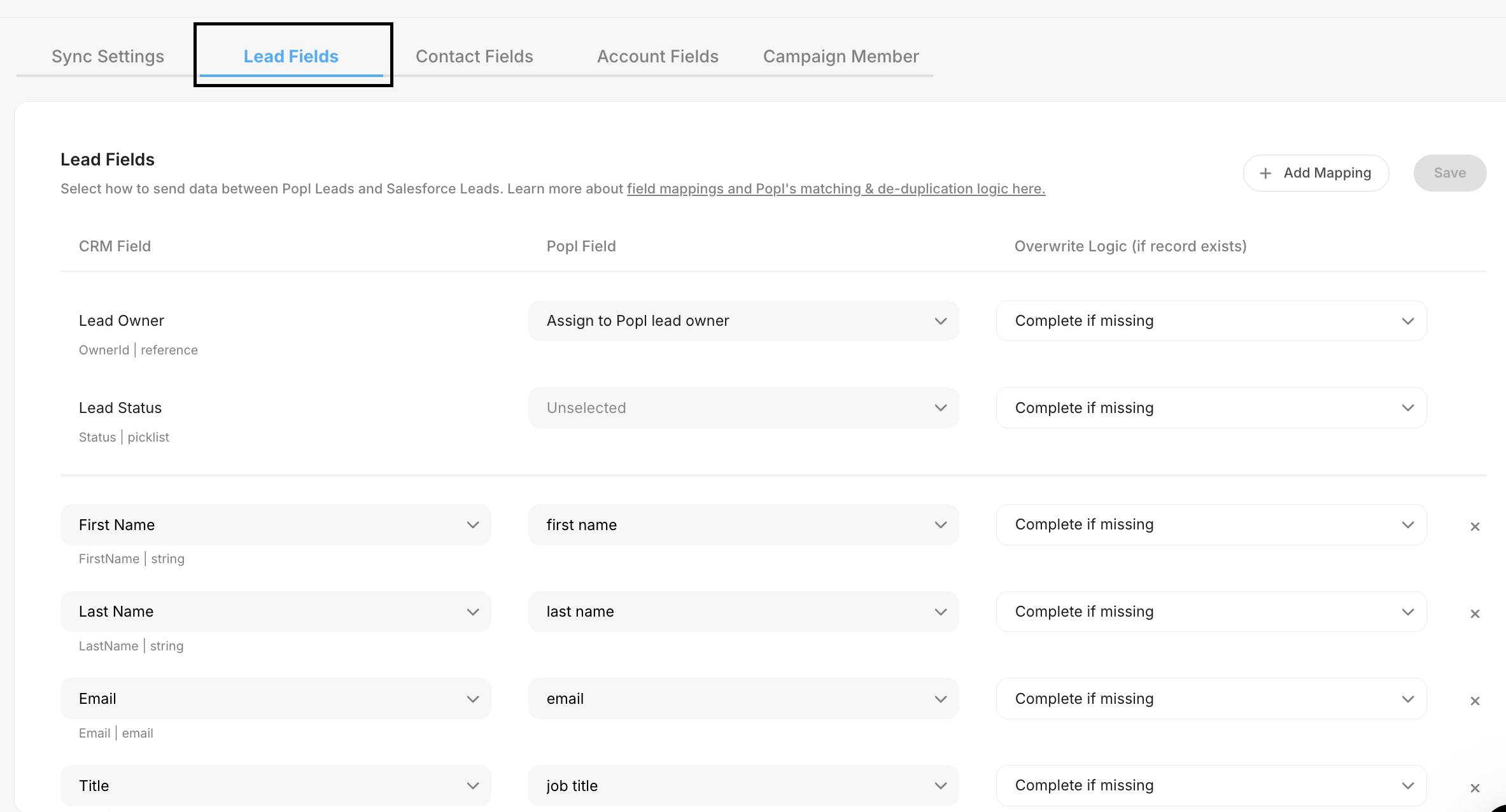
In the Leads tab, you can setup custom field mappings to apply to leads that will be synced as a lead to Salesforce.
The following are the default Lead mappings. You can customize these mappings to include lead qualifiers and enriched data.
| Popl Field - Leads | Salesforce Lead Field |
| ------------------------------- | ----------------------------------- |
| First name | FirstName |
| Last name | LastName |
| Email | Email |
| Job Title | Title |
| Company | Company |
| Number | Phone |
| Website | Website |
| Address | Address |
| Lead Source (Default is "Popl") | LeadSource |
| Lead Owner | OwnerId - Assign to Popl Lead Owner |
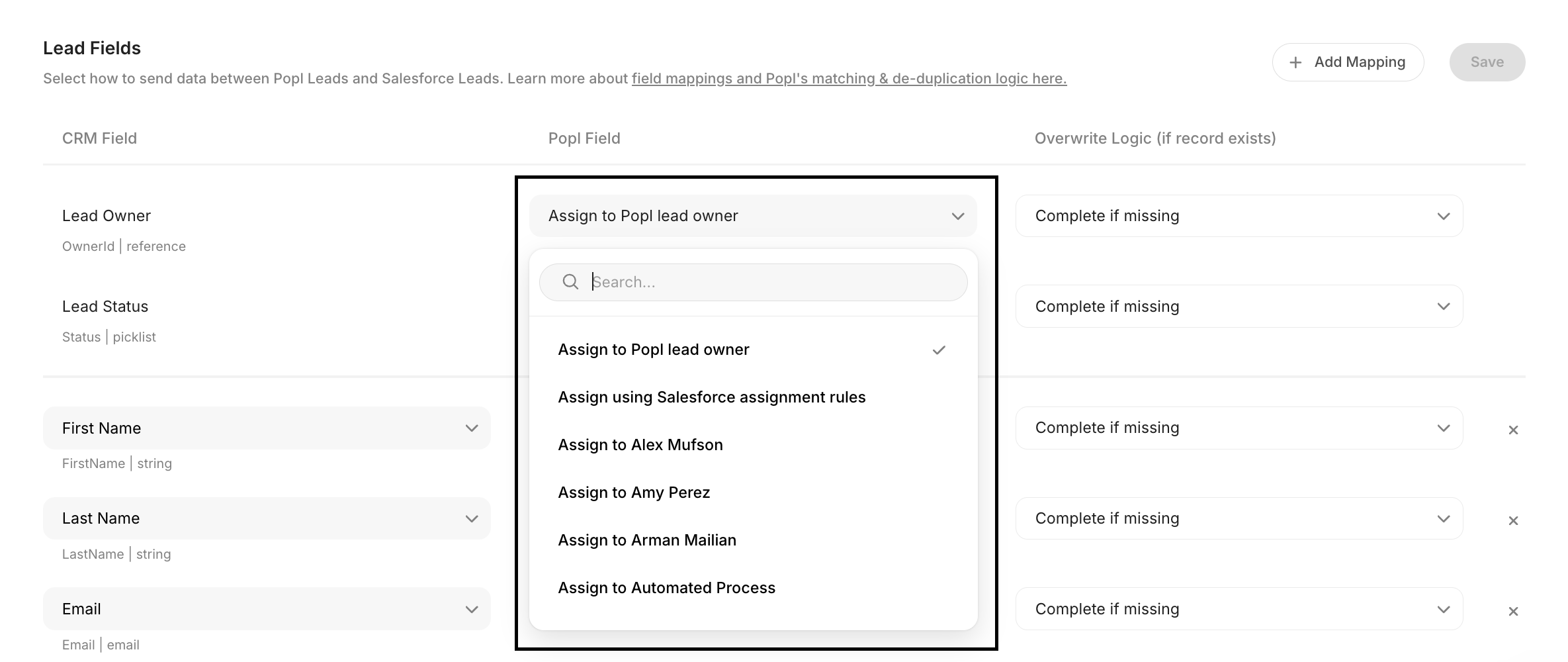
**By default the Salesforce owner will be mapped to the Popl Lead owner.** You can customize these mappings to include lead qualifiers and enriched data.
***
#### Contacts - **Field Mapping**
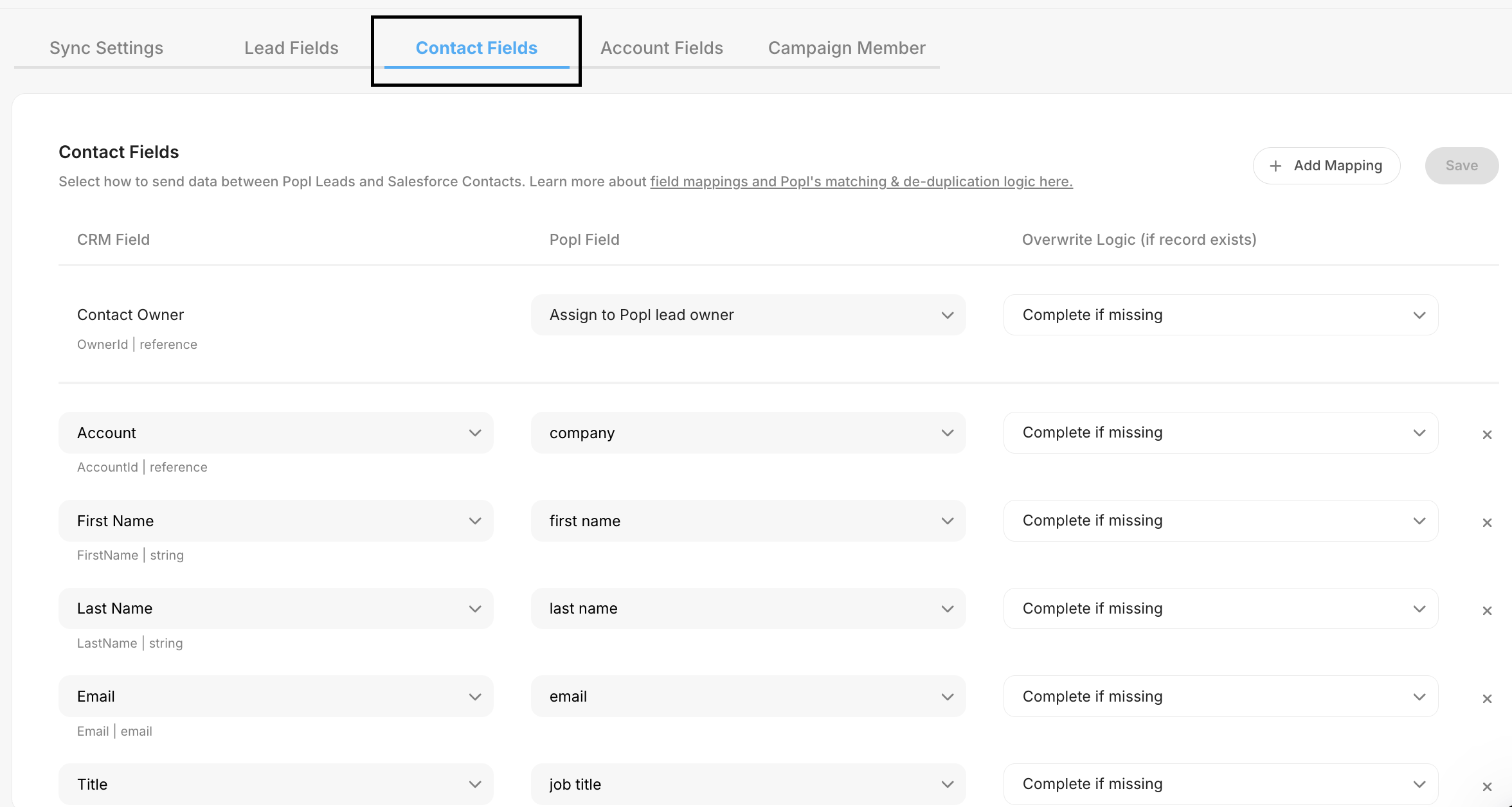
In the Contacts tab, you can setup custom field mappings to apply to Popl leads that will be synced as a contact to Salesforce.
The following are the default Contact mappings. You can customize these mappings to include lead qualifers and enriched data.
| Popl Field - Contacts | Salesforce Contact Field |
| --------------------- | -------------------------------------- |
| Company | Account |
| First name | FirstName |
| Last name | LastName |
| Email | Email |
| Job Title | Title |
| Number | Phone |
| Contact Owner | OwnerId - Assign to Popl Contact Owner |
**By default the Salesforce owner will be mapped to the Popl Contact owner.** You can update this field mapping to match your workflow.
***
#### Account - **Field Mapping**
Accounts can be created or updated any time a Contact is created or updated. When syncing, the integration uses the Contact’s **Company** value and the **email domain** to search for an existing Account.
* If a matching Account is found using either value, that Account will be linked to the Contact. The integration checks the **Company** value first and then the **email domain**. If either matches an existing Account, that record is attached to the Contact.
* If no match is found, the integration will create a **new Account** using the lead’s Company value.
* If the Company field is blank, the integration will create a new Account using the lead’s **email domain** as the Account name.
#### How We Create Accounts Using Fuzzy Matching
When creating or updating a record, our system attempts to match incoming data to an existing Salesforce Account before creating a new one. The matching logic works in the following order:
**1. (Optional) Website-based search — only if the setting is enabled**
If the **“Search for existing accounts by Website”** setting is turned on:
* We normalize the website value by removing `https://`, `http://`, and `www.`.
* We perform a SQL-style search (`%LIKE%`) against the **Account `Website` field**.
* If a match is found, that Account is used.
This search is **only performed when this setting is enabled**.
**2. Fuzzy match by email domain (Account Name field)**
* We extract the domain from the contact’s email address.
* We run a **fuzzy search against the Account `Name` field** (not Website).
* If a close match is found, we use that Account.
**3. Fuzzy match by company name (if provided)**
If the incoming data includes a `company` value:
* We run a **fuzzy search on the Account `Name` field** using the provided company name.
* If a close match is found, that Account is selected.
In the Account tab, you can setup custom field mappings to apply to associated accounts for your contacts. The following are the default Account mappings. You can customize these mappings to include lead qualifiers and enriched data.
| Popl Field - Account | Salesforce Account Field |
| -------------------- | ------------------------ |
| Company | AccountName |
| Website | Website |
***
#### Campaign Member - **Field Mapping**
If you want to map fields to the Campaign Member Object, **select a campaign to map to within your Sync Settings.** This is outlined under the Integration Settings Syncs section.
**Sync Settings tab → Settings → Select Campaign**
Once a campaign is selected in Settings you can choose which Popl fields you would like to map to your Campaign Member object. There are no default fields set here but you can add any Popl field or qualifer.
***
#### Sync Logic For All Objects
After choosing which fields you want to map, you can adjust the sync behavior. You can choose between overwrite, complete if missing, or append.
**Overwrite field:** If a value already exists for an object in Salesforce, replace that data with the Popl field.
**Complete if missing:** Only use the Popl value if the existing field is empty. Otherwise leave the field value as is in Salesforce,
**Append:** Add Popl values to fields that may already have data, instead of replacing it.
***
#### Mapping Types
**Dynamic Mappings** – Dynamic mappings send real-time data from each individual lead or contact into the corresponding Salesforce field. The synced value updates based on the information captured during the lead exchange, including any lead qualifiers selected. Use dynamic mappings when Salesforce fields should vary per record.
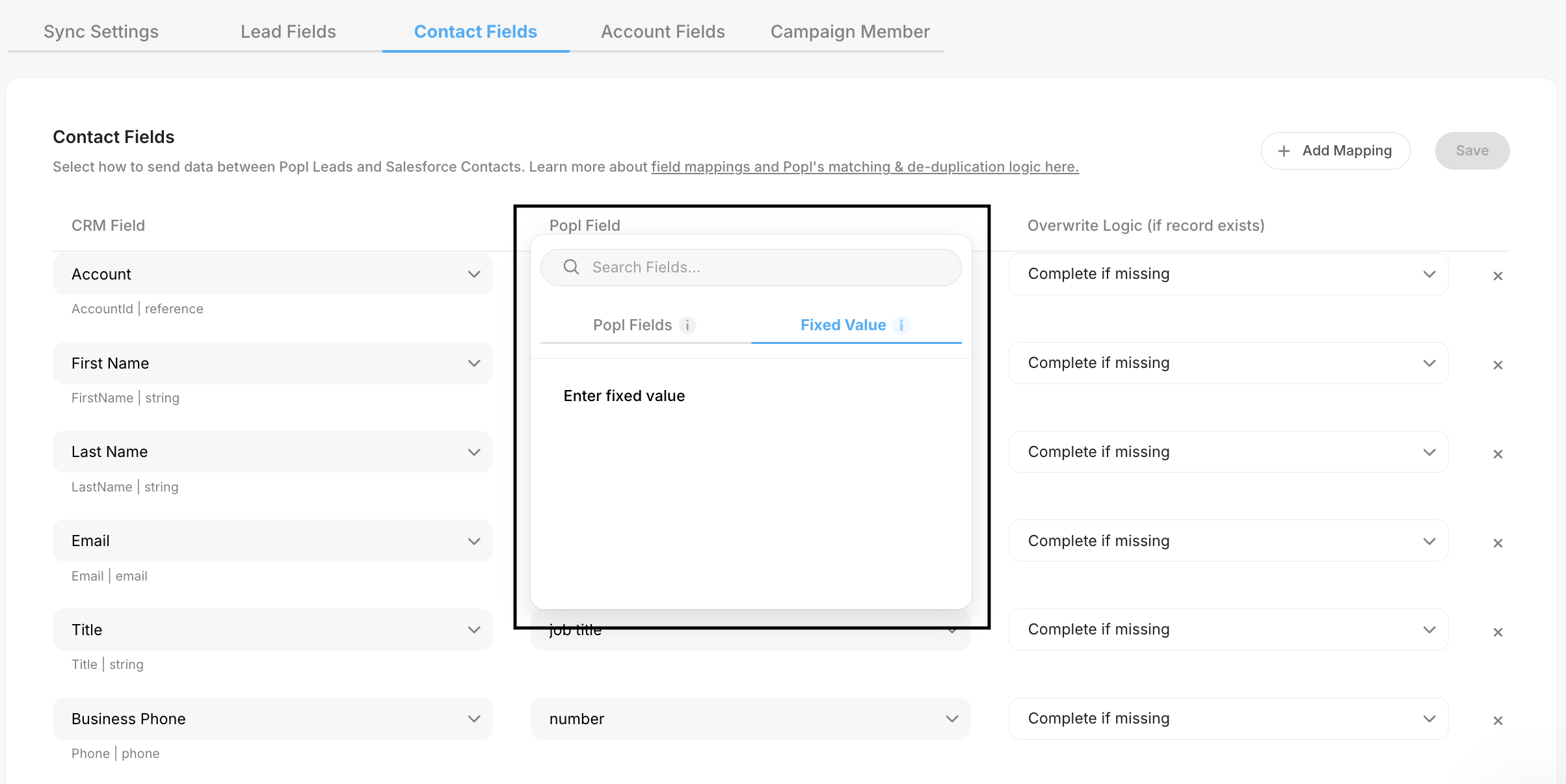
**Fixed Mappings** – Fixed mappings send the same predefined value to a Salesforce field for every synced record. This also applies to lead qualifiers, which can be set to pass a constant value if needed. To create a fixed mapping, click into the Popl field, select **Fixed Mapping**, and enter the value you’d like applied to all synced leads, contacts, accounts, or campaign members. Use fixed mappings when a consistent value is required across all records.
***
#### Save Settings
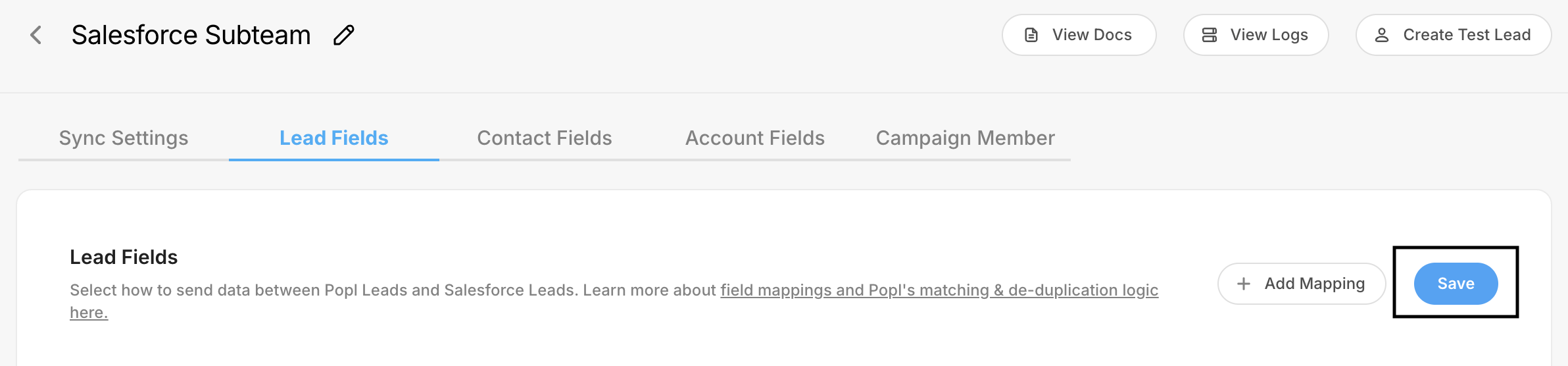
Once you have configured your field mappings, be sure to save your changes. You can do this by clicking **Save** in the top-right corner of the field mapping tab.
***
Once your mappings and sync behaviors are set, your integration runs seamlessly, automatically delivering the right data to the right Salesforce fields every time.
***
#### Need Help?
Contact Popl Support – our team is available to assist at .
\
With 🤍 from Popl.