> For the complete documentation index, see [llms.txt](https://docs.popl.co/introduction/llms.txt). Markdown versions of documentation pages are available by appending `.md` to page URLs; this page is available as [Markdown](https://docs.popl.co/introduction/integrations/microsoft-dynamics-integration.md).
# Microsoft Dynamics Integration
Connect Microsoft Dynamics to Popl Teams for syncing Popl leads as Dynamics leads or contacts.
This document provides a step-by-step guide for setting up our direct integration with Microsoft Dynamics. Once enabled, your team can seamlessly sync leads collected through Popl directly into your Dynamics 365 account.
#### **Connecting your Dynamics Account**
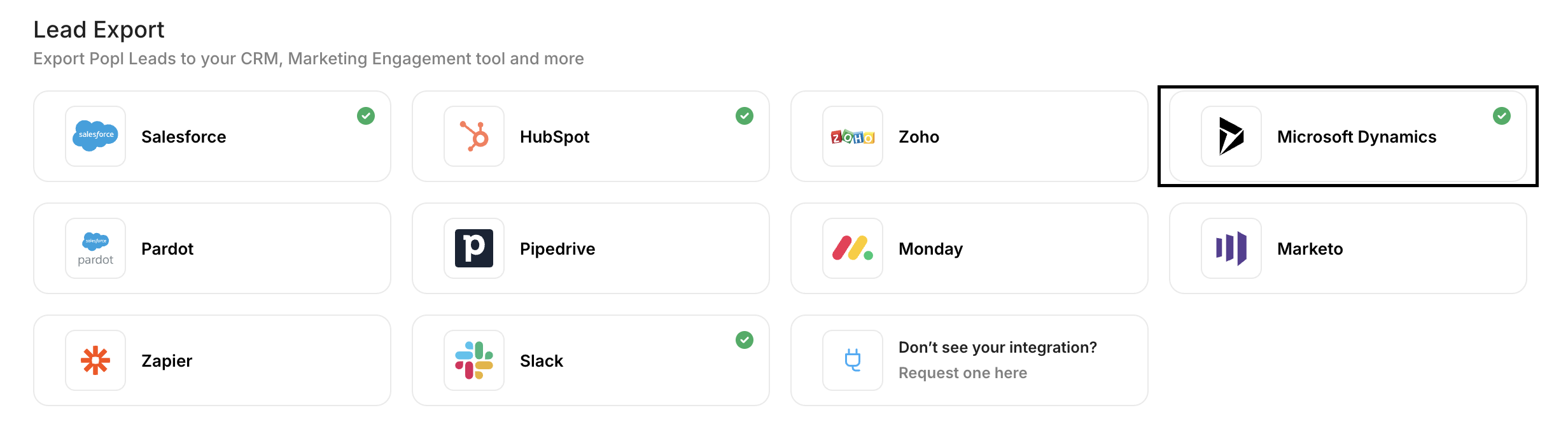
1\. First, from the Home page of [Popl Teams](https://dash.popl.co/), click into the "[Integrations](https://dash.popl.co/integrations)" tab. Select the option for Micosoft Dynamics.
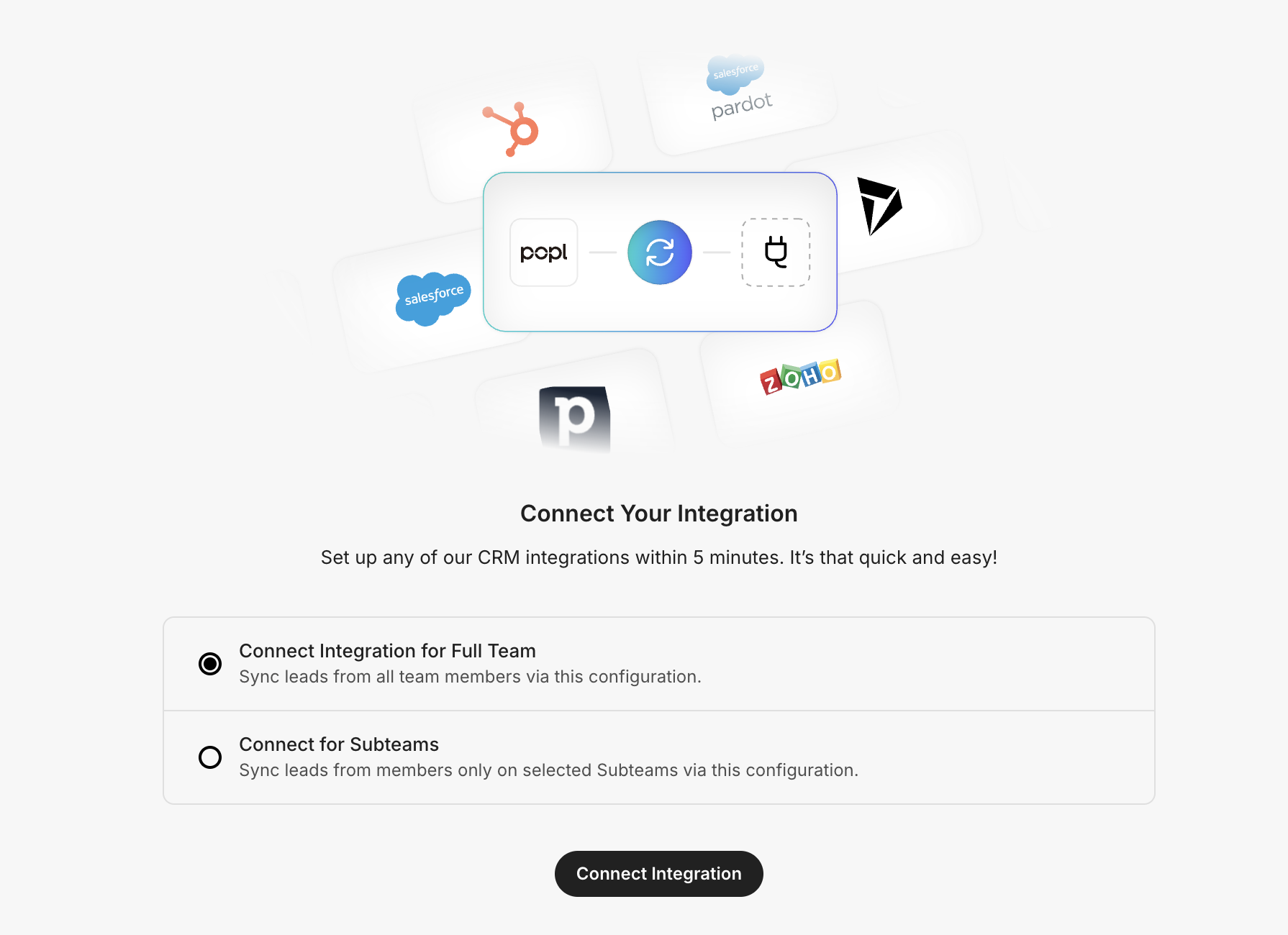
2. Next, you will be taken to the Connect page shown below. Choose if you want to connect this Dynamics connection for all members of the team, or just for certain subteams. CRM connections can be unique per subteam. Once you’ve made your selection click on “Connect Integration”
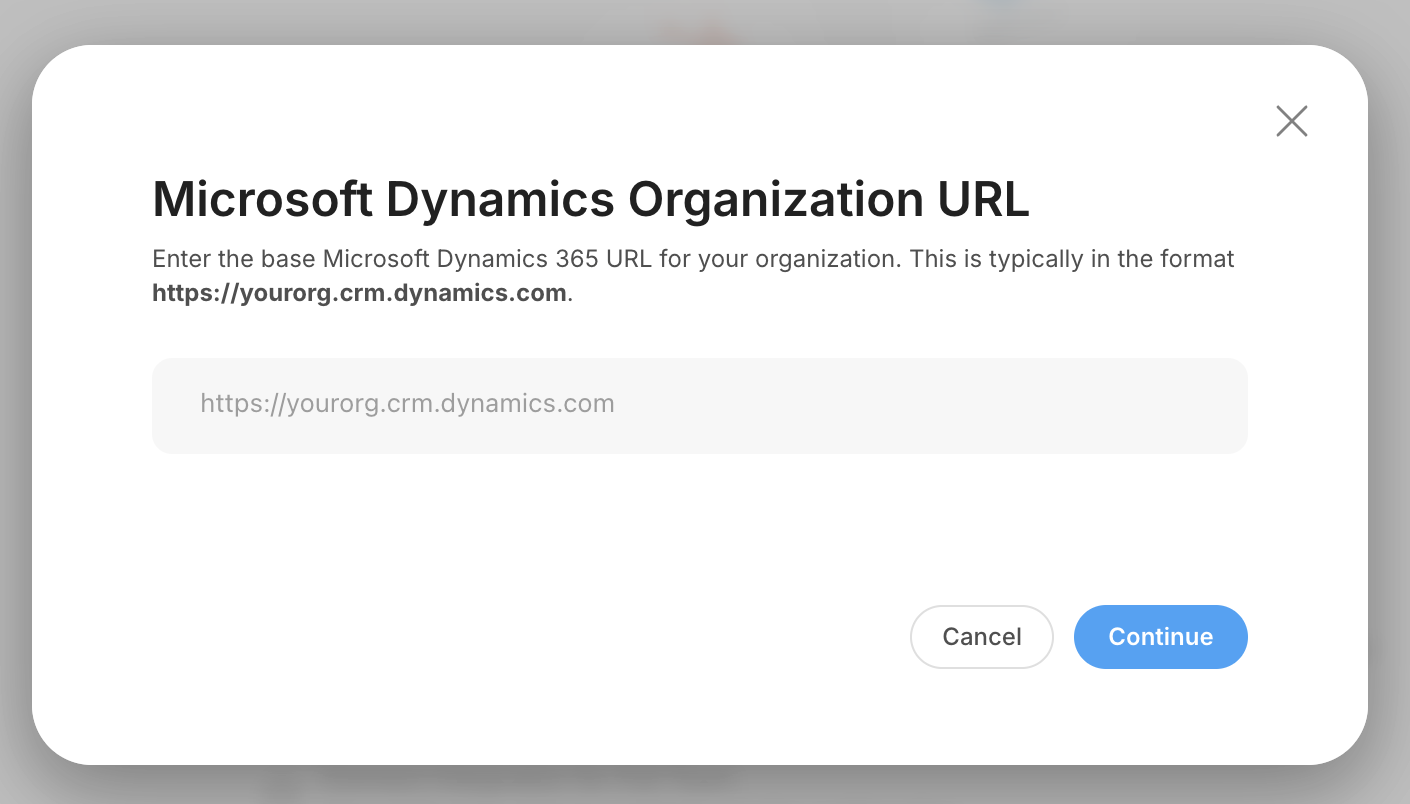
3. Enter the base Microsoft Dynamics 365 URL for your organization. The format will be: **.**
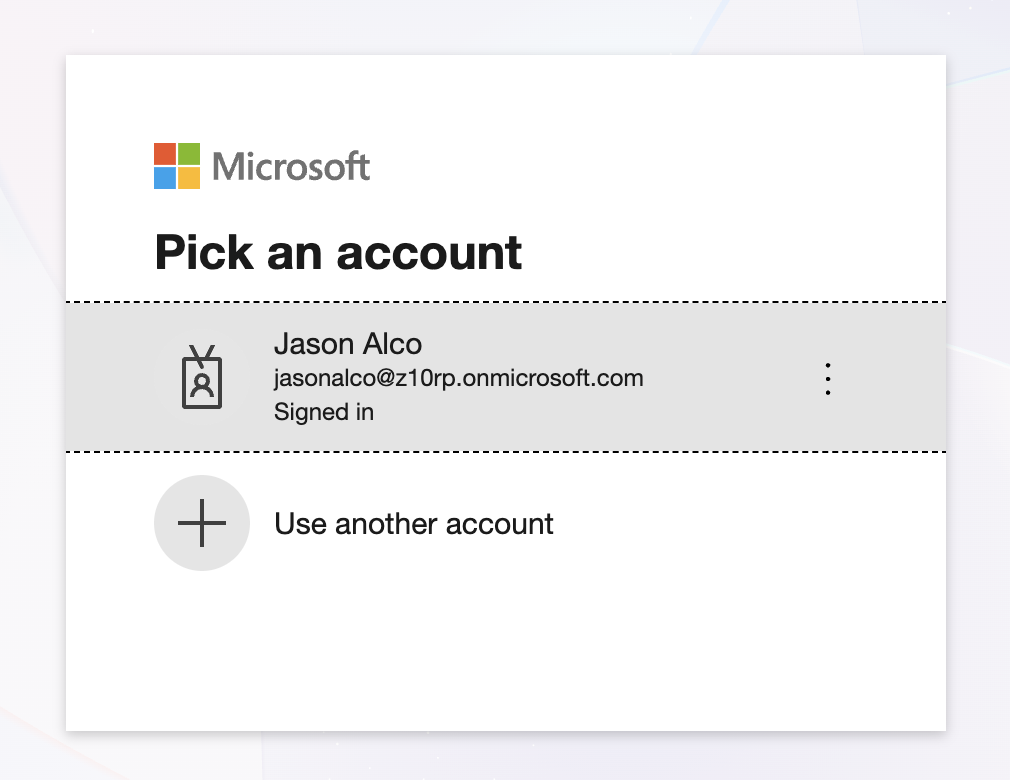
4. Microsoft login window will pop up asking you authenticate into your Microsoft admin account.
The account you use to login here should be a **Dynamics admin** to allow our integration to work correctly.
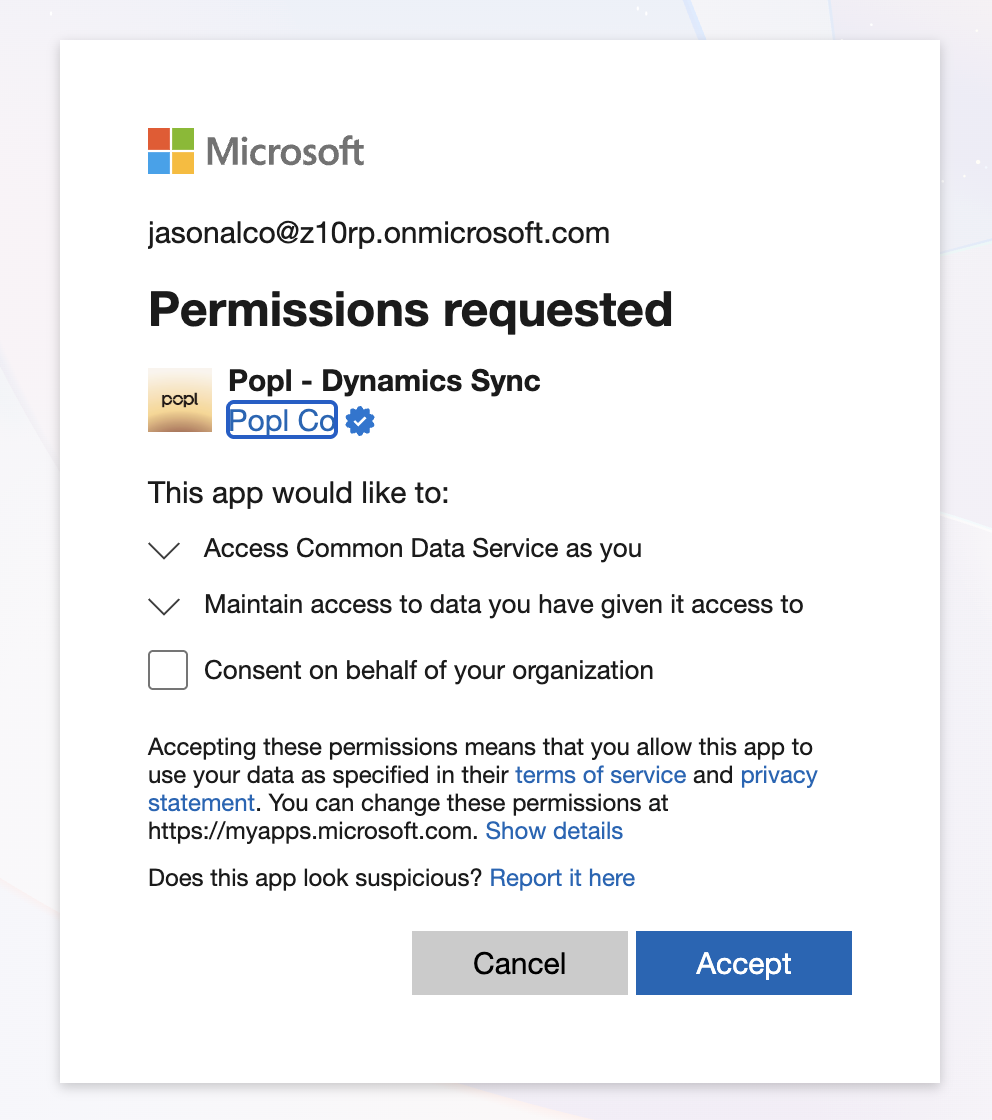
5. After choosing your account, a pop-up will appear requesting access to your Dynamics account. This page will state which permissions and scopes are needed for the integration to work. To grant access and complete the connection, click 'Accept' at the bottom of the pop-up.
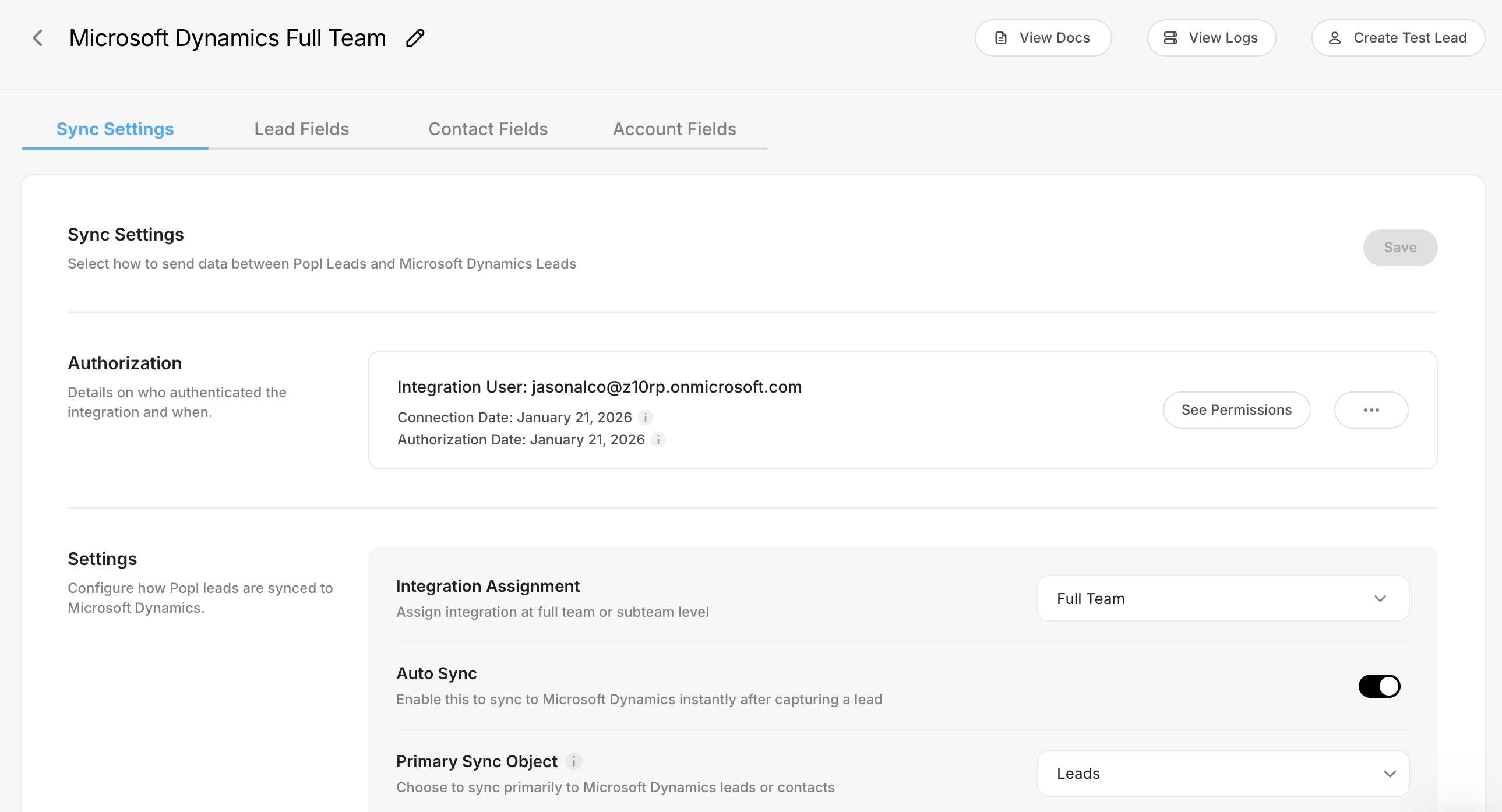
6. After logging in and granting access you will be taken directly to your Dynamics Configuration page.
Your account is now connected. To fully customize your integration, continue with the next articles: [Dynamics Integration Settings](/introduction/integrations/microsoft-dynamics-integration/dynamics-integration-settings.md) and [Dynamics Field Mapping](/introduction/integrations/microsoft-dynamics-integration/dynamics-field-mapping.md).
#### Need Help?
Contact Popl Support – our team is available to assist at .
\
With 🤍 from Popl.