> For the complete documentation index, see [llms.txt](https://docs.popl.co/introduction/llms.txt). Markdown versions of documentation pages are available by appending `.md` to page URLs; this page is available as [Markdown](https://docs.popl.co/introduction/integrations/pipedrive-integration/pipedrive-integration-settings.md).
# Pipedrive Integration Settings
Once you've connected your Pipedrive account, you can customize the settings to meet your needs.
### **Authorization Information**
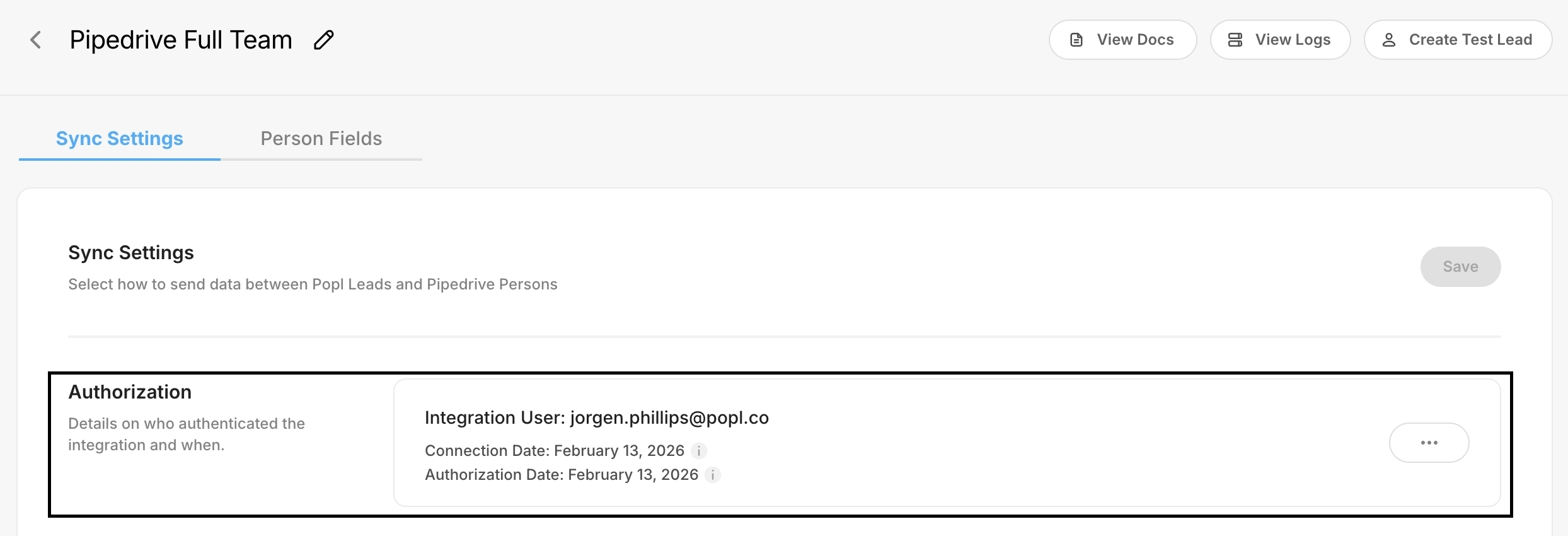
You can view details about the **integration user,** the Pipedrive user who connected the app, on the **Sync Settings** tab of your configuration. This section displays:
* **Integration User:** The email address of the Pipedrive user who connected the integration
* **Connection Date:** The date the integration was initially connected
* **Authorization Date:** The date the integration was authorized to access Pipedrive
***
### **General Settings**
In this section you can configure your integration settings for team member assignments and auto syncing.
**Integration Assignment**
You can choose which team members this integration applies to. In this section, you can assign the integration to the **full team** or to a specific **subteam**, depending on how you want leads to sync into Pipedrive.
**Auto Sync**
This toggle controls how Popl leads flow into Pipedrive. You can choose between **automatic syncing** or **manual lead selection**, depending on how much control your team needs.
**Auto Sync ON - Instant Lead Syncing (Recommended)**
When Auto Sync is enabled, every new lead captured by any team member is immediately pushed to Pipedrive.
* No manual data entry
* No lead selection required
* Fast, fully automated workflow for maximum efficiency
**Auto Sync OFF - Manual Lead Selection**
When Auto Sync is turned off, leads are not automatically sent to Pipedrive. Instead, admins or members choose which leads to sync. This option provides more control for teams that want to review or qualify leads first.
***
#### Save your Settings
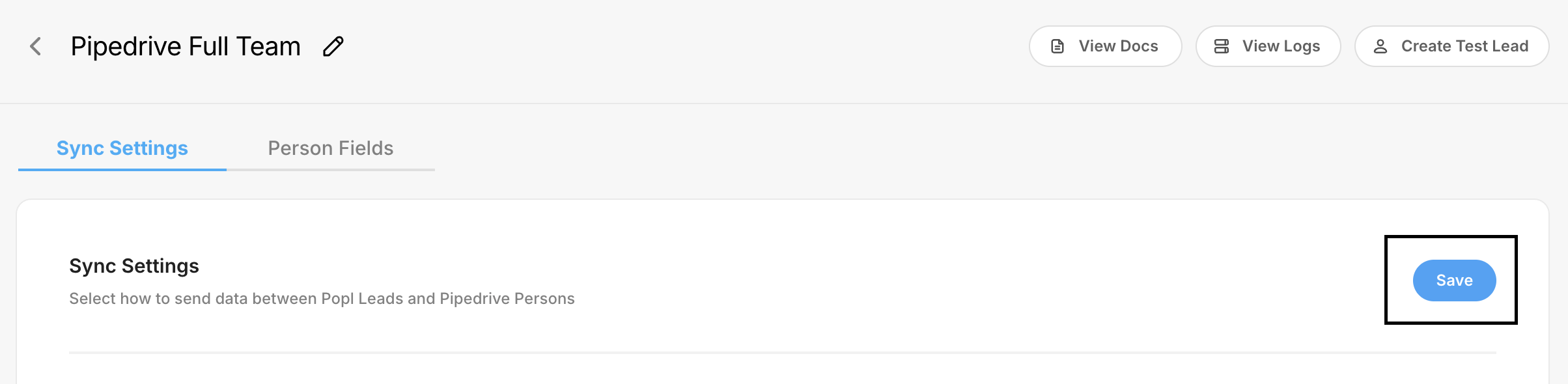
Once you have configured your integration settings, be sure to save your changes. You can do this by clicking **Save** in the top-right corner of the integration configuration page.
By fine-tuning these integration settings, you can ensure that Popl and Pipedrive work together seamlessly—moving your leads where they need to go, keeping your data clean, and helping your team stay fast and efficient.
Once your configuration is complete, your workflow becomes fully streamlined: smarter syncing, fewer manual steps, and a smoother experience for everyone on your team.
***
#### **Need Help?**
Contact Popl Support – our team is available to assist at .
With 🤍 from Popl.