> For the complete documentation index, see [llms.txt](https://docs.popl.co/introduction/llms.txt). Markdown versions of documentation pages are available by appending `.md` to page URLs; this page is available as [Markdown](https://docs.popl.co/introduction/integrations/microsoft-dynamics-integration/send-a-test-lead-to-dynamics.md).
# Send a Test Lead to Dynamics
After setting your desired configuration and mappings, you can run a test to confirm everything is working as expected.
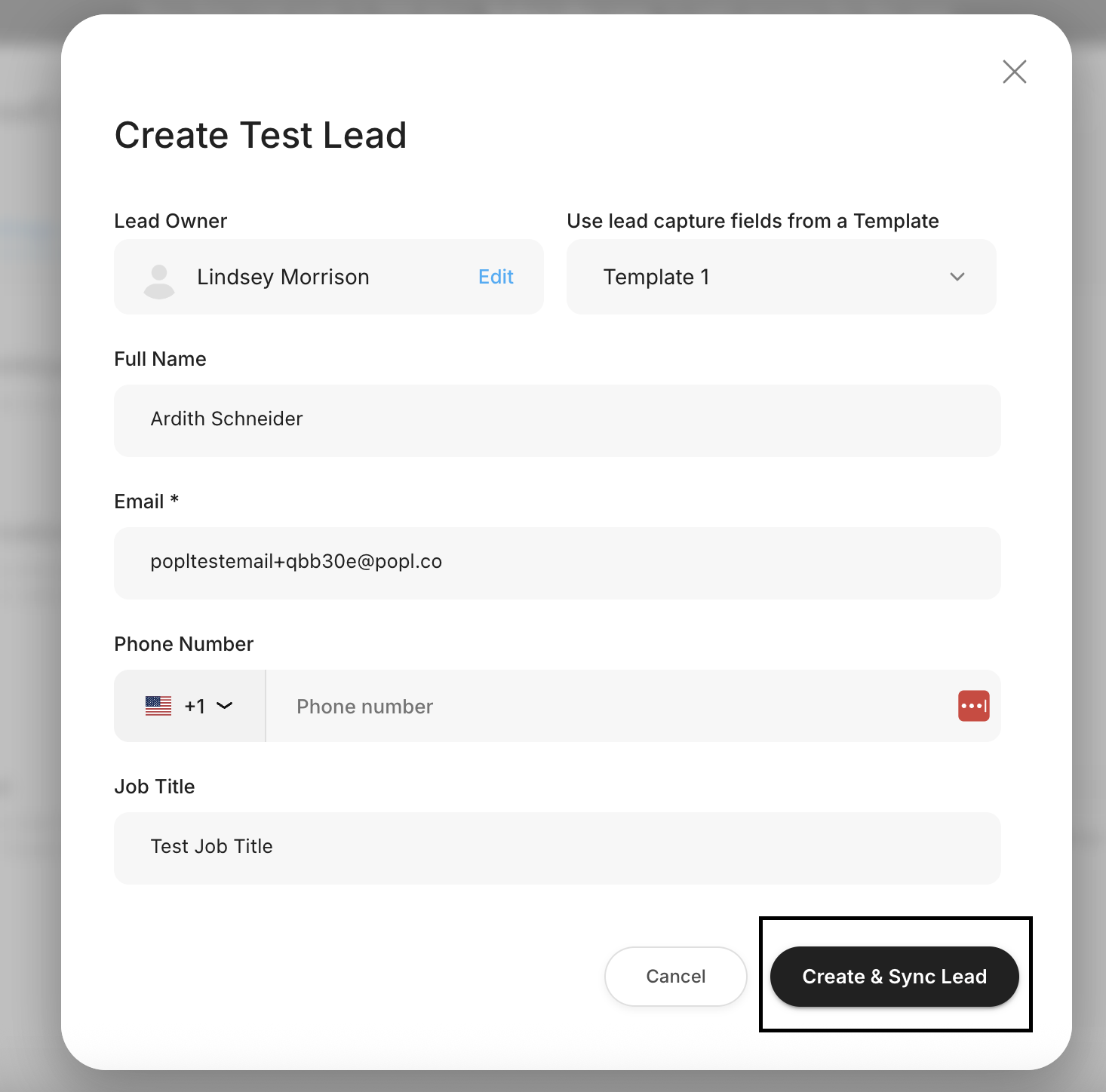
Select the **Create Test Lead** button at the bottom right of the Configure Dynamics page.
A pop-up will appear with test data. Click **Create & Lead** to generate a test lead, which you can then review to verify your sync settings and custom mappings. The test lead will appear on the Leads page within your dashboard.
Testing your configuration ensures your Dynamics integration is set up exactly the way you intend. By creating a test lead and reviewing the resulting record, you can confirm that your sync settings, field mappings, and workflow logic are functioning properly before going live with real customer data.
***
#### Need Help?
Contact Popl Support – our team is available to assist at .
\
With 🤍 from Popl.