> For the complete documentation index, see [llms.txt](https://docs.popl.co/introduction/llms.txt). Markdown versions of documentation pages are available by appending `.md` to page URLs; this page is available as [Markdown](https://docs.popl.co/introduction/integrations/zoho-integration/zoho-field-mapping.md).
# Zoho Field Mapping
You can set up field mappings to ensure your Popl Lead data ends up where you need it in your CRM. You can setup field mappings for the lead object in Zoho.
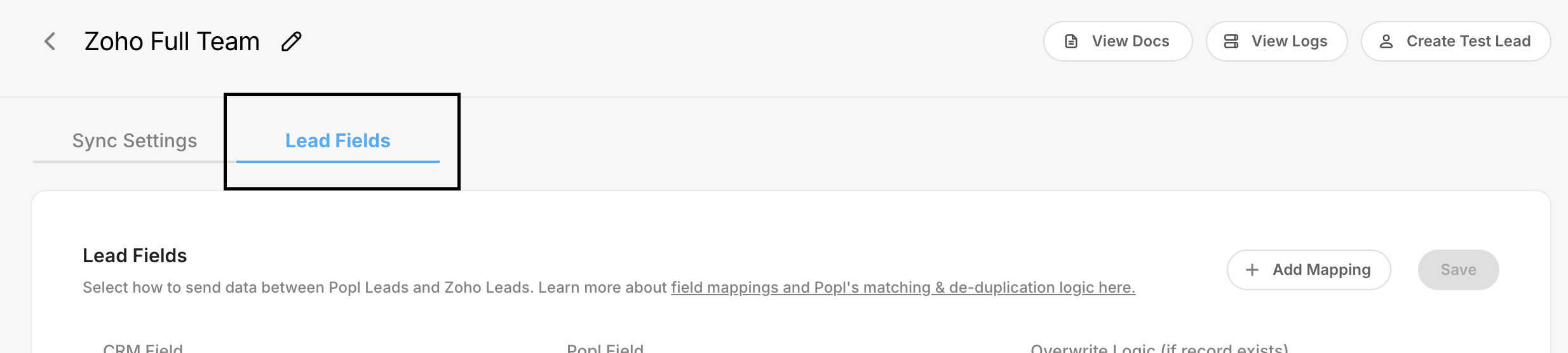
To start setting up your field mappings click into the Contacts field tab in your integration settings.
The following are the default Lead mappings. You can customize these mappings to include lead qualifiers and enriched data.
| Popl Field | Zoho Field |
| ---------- | ---------- |
| First Name | First Name |
| Last Name | Last Name |
| Email | Email |
| Number | Phone |
| Company | Company |
| Website | Website |
***
#### Customize your Field Mappings
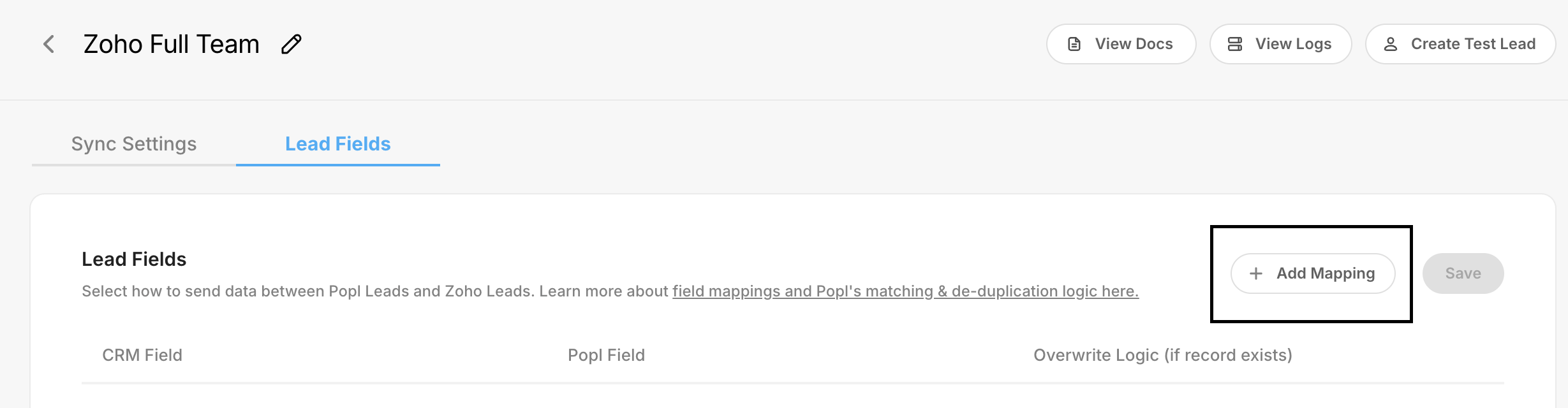
You can modify or replace the default mappings with your own custom mappings. This includes Popl default fields, enriched data, and leads qualifiers. To add a new field mapping, click **Add Mapping** in the top-right corner of the Lead field mapping tab.
***
#### **Sync Logic For Leads**
After choosing which fields you want to map, you can adjust the sync behavior. You can choose between overwrite, complete if missing, or append.
**Overwrite field:** If a value already exists for an object in Zoho, replace that data with the Popl field.
**Complete if missing:** Only use the Popl value if the existing field is empty. Otherwise leave the field value as is in Zoho.
**Append:** Add Popl values to fields that may already have data, instead of replacing it.
***
#### **Mapping Types**
**Dynamic Mappings** – Dynamic mappings send real-time data from each individual lead into the corresponding Zoho field. The synced value updates based on the information captured during the lead exchange, including any lead qualifiers selected. Use dynamic mappings when Zoho fields should vary per record.
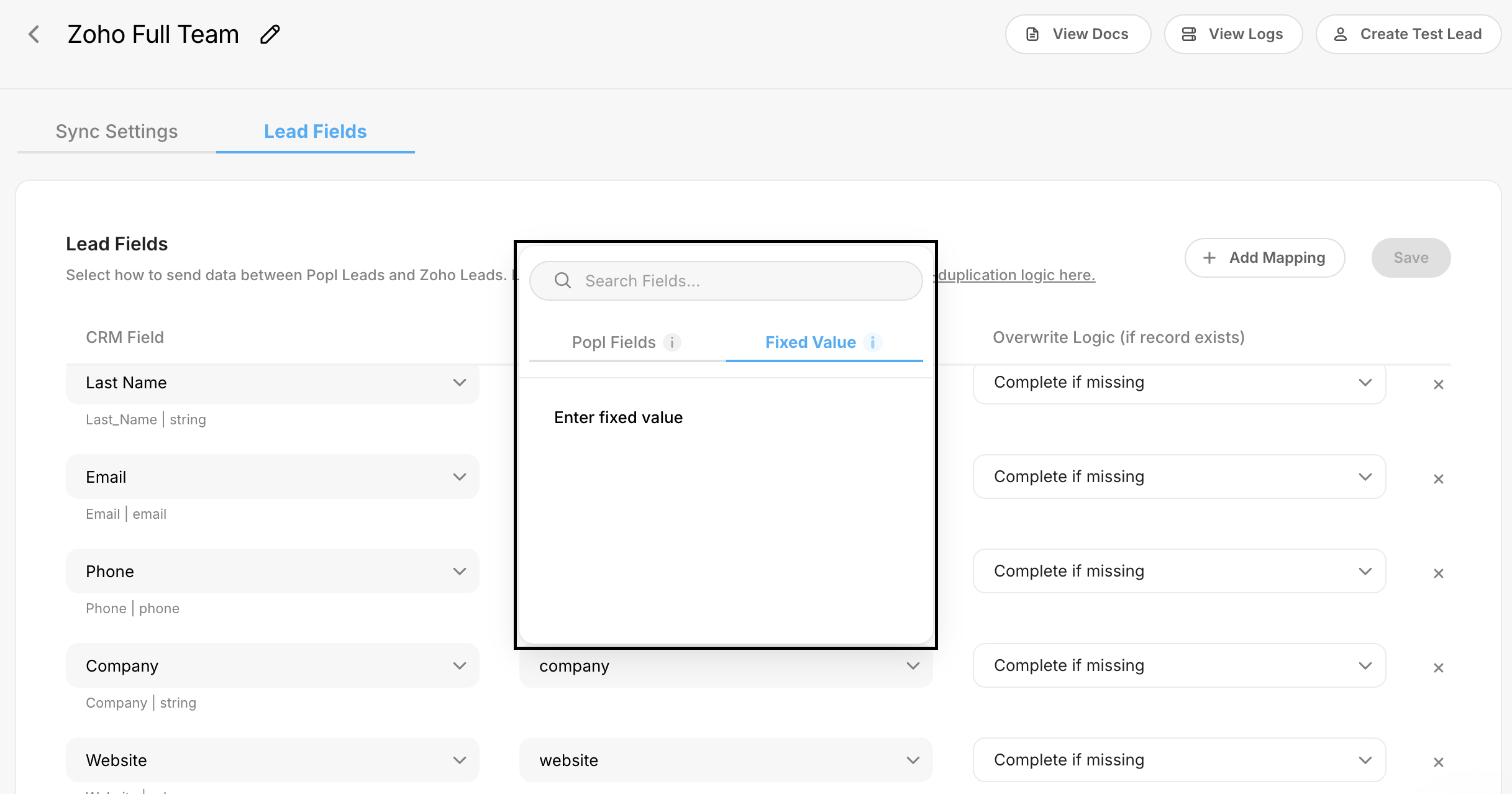
**Fixed Mappings** – Fixed mappings send the same predefined value to a Zoho field for every synced lead. This also applies to lead qualifiers, which can be set to pass a constant value if needed. To create a fixed mapping, click into the Popl field, select **Fixed Mapping**, and enter the value you’d like applied to all synced leads. Use fixed mappings when a consistent value is required across all records.
***
#### **Save Settings**
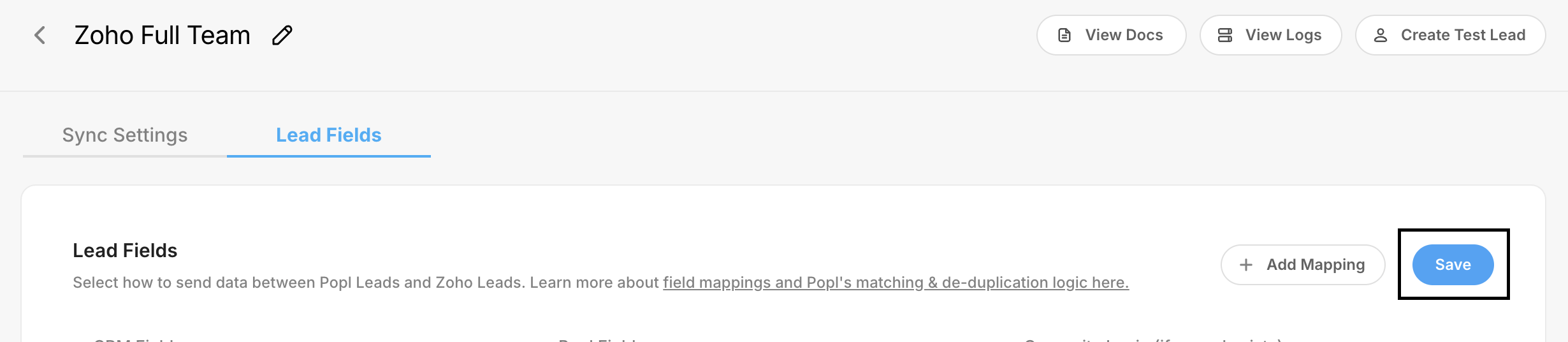
Once you have configured your field mappings, be sure to save your changes. You can do this by clicking **Save** in the top-right corner of the lead mapping tab.
Once your mappings and sync behaviors are set, your integration runs seamlessly, automatically delivering the right data to the right Zoho fields every time.
***
#### **Need Help?**
Contact Popl Support – our team is available to assist at .
With 🤍 from Popl.