> For the complete documentation index, see [llms.txt](https://docs.popl.co/introduction/llms.txt). Markdown versions of documentation pages are available by appending `.md` to page URLs; this page is available as [Markdown](https://docs.popl.co/introduction/integrations/hubspot-integration/contact-sync-logic/send-a-test-lead-to-hubspot.md).
# Send a Test Lead to HubSpot
After setting your desired configuration and mappings, you can run a test to confirm everything is working as expected.
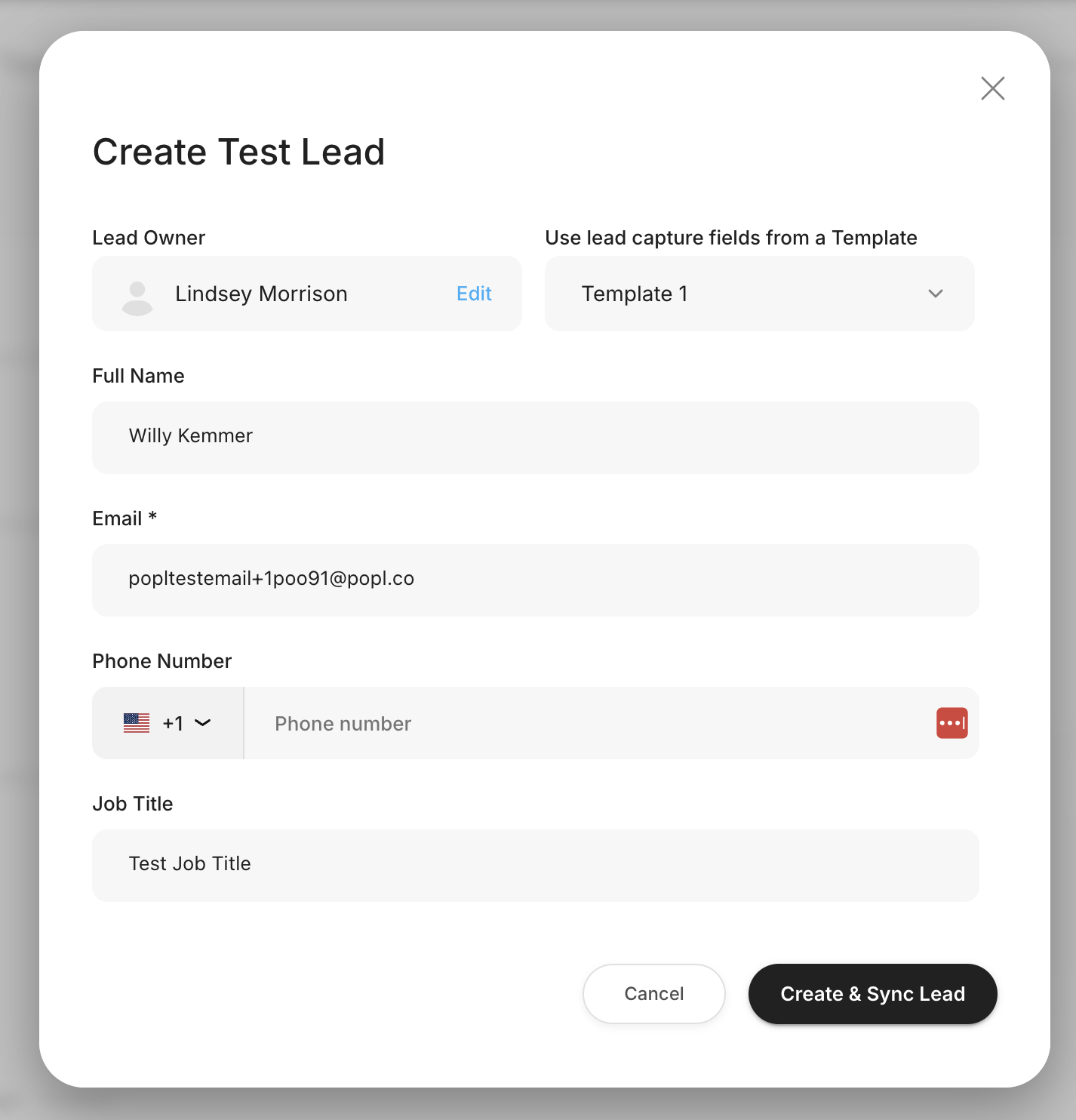
Select the **Create Test Lead** button at the top right of the Contacts Fields tab.
A pop-up will appear with test data. Click **Create Lead** to generate a test lead, which you can then review to verify your sync settings and custom mappings. The test lead will appear on the Leads page within your dashboard.
***
Testing your configuration ensures your HubSpot integration is set up exactly the way you intend. By creating a test lead and reviewing the resulting record, you can confirm that your sync settings, field mappings, and workflow logic are functioning properly before going live with real customer data.
***
#### Need Help?
Contact Popl Support – our team is available to assist at .
\
With 🤍 from Popl.